
10 Useful CSS/JS-Coding Solutions For Web-Developers
Often creative and truly remarkable design solutions remain unknown because we, designers, simply overlook them. Being busy with our own projects, we sometimes try to grasp the intuition behind (probably) complex and cluttered code of other designers to understand how they manage to implement particular design ideas. In fact, by just observing the code of other developers we can learn a lot from them; we can find interesting ideas and improve the quality of our work.
Over the last months we’ve been paying closer attention to interesting design techniques and coding solutions and tried to understand how each of these solutions work and how they can benefit other designers and developers. Such designs are often hard to find, so it would be great if you could suggest some solutions that are worth exploring in detail – we’ll certainly cover them in our next posts!
So let’s take a closer look at 10 useful CSS & Javascript techniques and coding solutions that can turn out to be useful for your next project. You should have at least a basic knowledge of CSS and JavaScript before you read the entire article.
You may be interested in the following related posts:
- 5 Useful Coding Solutions For Designers and Developers
- 7 Principles Of Clean And Optimized CSS Code
- 8 Simple Ways to Improve Typography In Your CSS-Designs
- Fixed vs. Fluid vs. Elastic Layout: What’s The Right One For You?
1. Inline Content Imagery
When viewing a blog post or an online article, we typically tend to find that most images which are “dropped” into the story’s actual content are often presented in a boring or bland manner.
However, it is actually quite easy to create attractive content imagery that maintains a strong sense of design and branding, yet still manages to flow naturally with the content of your site. UXBooth provides a clean and elegant example of this technique (scroll down until you see a silverback). In the screenshot below, notice how the Silverback‘s image sits naturally in-line and in flow with the content on the page.

UxBooth’s Inline Content Imagery in Action
How Is It Done?
At the first glance the silverback looks like a background image that has been positioned in the center of the content column with CSS or JavaScript (or a combination of the two); however, this is a pure CSS solution. A div wrapping the image of the silverback (a simple .png-image) is floated to the right. Immediately after that in the HTML comes a paragraph and an ordered list. The “silverback”-div has a left-margin of 47px which keeps the p tag and the ol tag’s content from overlapping the image, thus providing good visual spacing and overall page flow.

HTML
<h3>Contest Detailsh3>

<div class="imagery"">
  <img src="imagery.png" width="205" height="400" alt="Imagery" />
div>

<p>...the introductory paragraph...p>

<ol>
  <li>...various bullet points went here...li>
ol>
CSS
.imagery {

 /* The image is floated to the right */
  width: 205px;
  float: right;

 /* The image is positioned precisely,
    by pushing it 20px from the right border */
  margin-right: -20px;

/* The image is pushed away from the text
    (to the right) with a left margin of 47px */
  margin-left: 47px;
}
2. Typographic Tricks
CommandShift3, self proclaimed hot-or-not of websites, uses an interesting typographic trick to display the vote results for each website in which you have submitted a vote. Obviously, this effect is achieved using only CSS.

Nice typographic effects to show percentages of votes
How Is It Done?
Each result line contains a “winning percentage”-div + screenshot as well as a “losing percentage”-div + screenshot (the image below should make it clear what is meant here). Each of the percentages blocks is given a width that is slightly smaller than the width it needs to display its full text. Besides, the CSS attribute overflow:hidden is applied to hide the content that is not needed.
This is all the code necessary for the “winning percentage”-div. The “losing percentage”-div gets the same bit of code with the addition of a negative margin to make it appear to slide behind the losing site’s thumbnail.

HTML
<div class="bar">
  <div class="screen-left loser choice">
  <div class="pct">
    <div>46<span>%span>div>
    div>
    <div>
      --the image goes here--
    div>
  div>
  <div class="screen-right winner">
  <div>
    --the image goes here--
  div>
    <div class="pct">
      <div>54<span>%span>div>
    div>
  div>

  <div class="legend">
      --You voted for text goes here--
     div>
div>
CSS
.result .pct {
  float:left;
  height:80px;
  margin:0;
  overflow:hidden;
  padding:0;
  white-space:nowrap;
  width:95px;
  }
.result .screen-left .pct div {
  margin:28px 0 0 10px;
  float: left;
  }
.result .loser .pct div {
  color:#84C3FF;
  }
.result .pct div span {
  display:inline;
  font-size:55px;
  }
.result .screen-right .pct div {
  margin:28px 0 0 -8px;
  float: left;
  }
.result-first .pct div {
  color:#FFFFFF;
  }
3. Inline Informational Overlays
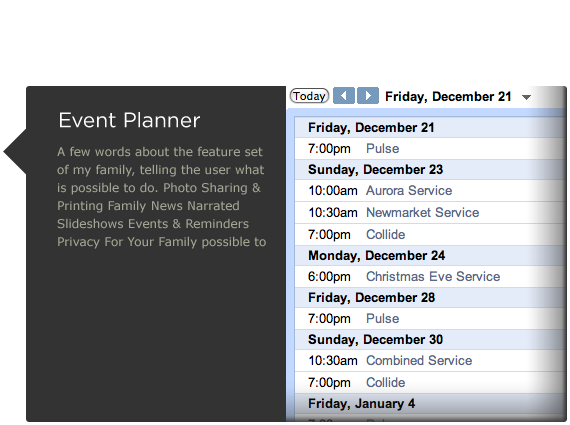
This 31three.com version of myfamily.com has an interesting use of icons sprinkled throughout the body text. If you roll over the calendar icon an informational overlay (very similar to a tooltip) is displayed – the latter one shows a graphic of what your potential calendar would look like when you sign up with myfamily.com. Notice the transparency effect and the arrow on the left side of the appearing block.

How Is It Done?
When a user mouses over the calendar icon, JavaScript is used to show a hidden div that contains a transparent .png-image. When your mouse moves away from the calendar icon, the div is hidden again. This particular example doesn’t use a JavaScript framework like jQuery or Prototype, instead it uses two custom functions to hide and show the div accordingly.
Please notice that this code does not adher to good coding practices as it does not separate JavaScript functionality from the styling of the site. You should never include Javascript events as inline attributes and this example is rather a quick prototype. It is better to encapsulate the JavaScript code in a single .js-file and embed it on your web page using the